Fix Windows Sound and Graphics Issues with Driver Booster
Your video call starts, but nobody can hear you. Or your screen flickers right in the middle of a game. Sound and display glitches are annoying, and they often show up without warning.
Other common signs include game lag and a screen resolution that stays stuck or locked. In many cases, the cause is a driver conflict. Driver Booster can help you find and fix these driver problems in a few clicks, even if you have little technical experience.
Why Do Sound and Display Errors Happen?
Drivers are small programs that let Windows talk to your hardware. When a driver fails, the device stops working properly.
Here are the most common causes:
- Compatibility issues after Windows updates. A system update can change how Windows handles hardware, and an older driver may not keep up.
- Corrupted driver files. Power cuts, crashes, or failed installations can damage driver files.
- Missing drivers. Sometimes Windows installs a basic generic driver that lacks full features.
- Outdated drivers. Old versions may not work well with newer apps, games, or video formats.
These problems affect daily life more than you might think. A Windows sound driver issue can ruin video calls and music. A faulty graphics driver can cause flickering, poor video quality, and low frame rates while gaming or streaming.
Key Features of Driver Booster
Driver Booster is built to take the guesswork out of driver maintenance. Here are the features that matter most for sound and display problems:
- Huge driver database (23M+): It increases the chance of finding a matching driver for your hardware, including less common devices.
- Built-in Tools tab: It includes fixes such as Fix No Sound and Fix Device Error, so you can handle common problems without searching through Windows settings.
- Offline Driver Update support: You can update drivers on a PC without a working internet connection, which helps when a network driver is the problem.
- One-click scanning: It checks your system and lists outdated, missing, or faulty drivers in one place.
- Easy interface: You do not need technical knowledge to use it. The buttons and labels are clear.
Step-by-Step Guide: How to Fix Sound and Display Issues
Follow these steps on Windows 10 or Windows 11.
- Download and launch Driver Booster.
Install the program from the official website and open it. The main dashboard appears right away.

- Click the SCAN button.
The scan checks all your drivers and shows which ones are outdated, missing, or broken. It usually takes a short time.

- Open the Tools menu.
If you have no audio, choose “Fix No Sound.” For other hardware errors, try “Fix Device Error.” Follow the on-screen prompts and let the tool finish.

- Restart your PC.
Many driver changes only take effect after a reboot. Restart your computer, then test your speakers, headphones, and screen.
What if the problem continues?
Check that your speakers or headphones are plugged in and set as the default device in Windows sound settings. For display problems, check your cable connections and refresh rate settings. If you still have trouble, run another scan to see whether any drivers are left to update.
Conclusion
Driver problems do not need to take up your time. An automated driver updater can find outdated or damaged drivers and replace them without manual searching or risky downloads from unknown sites.
If you are dealing with no sound, a flickering screen, or poor game performance, try Driver Booster. Scan your system, update what is needed, and restart. It is a simple routine that helps keep your PC running smoothly.
FAQ
What is Driver Booster 14?
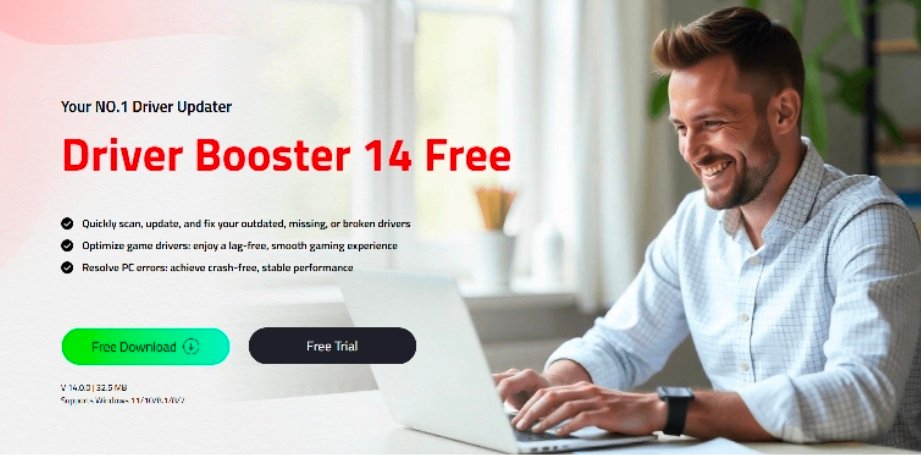
It is a leading driver update tool that lets users check and update more than 23,000,000 device drivers and game components with a single click. It not only resolves common issues like no audio, network problems, and low screen resolutions, but also optimizes games to reduce latency and stabilize frame rates.
Is Driver Booster 14 free?
Yes, there is a free version available to the public, and it is suggested to activate the PRO version if you prefer more advanced features.
What Windows systems does it support?
It is fully compatible with Windows 10 and Windows 11 (including ARM64 devices), and also runs smoothly on Windows 8/8.1, Windows 7, Windows XP, and Vista.