
Protect Public Wi-Fi Security Using iTop VPN
Introduction
Access to the internet can be easily made available in cafés, airports, hotels, and other public spaces through public Wi-Fi. These networks can present varying online security threats, however. Personal information may be more likely to be intercepted with unsecured connections. Sensitive accounts should be accessed with caution on the public network.
Internet connections are further protected by a Virtual Private Network (VPN). It tunnels internet traffic through a VPN server to help safeguard online activity. iTop VPN for Windows offers several privacy and security options. These are: Double VPN, Auto Connect, Browser Privacy, and other convenient features.
Why Is Public Wi-Fi Security Important?
There are numerous common places where you can find public Wi-Fi. They are used to read mail, go online, and use services. Some public networks, however, might not have the correct security settings.
When a network is unsecured, other users can have opportunities to view network activity. The auto-connect feature can be activated after it has been connected to a public Wi-Fi network. Auto Connect allows users to start the VPN connection automatically, thus saving them the trouble of starting the VPN connection manually each time they want to access the Internet.
Users must not send or give out any confidential data over untrusted networks. One of the best advantages of a VPN is that it provides additional security when using publicly accessible Wi-Fi.
4 Common Risks of Using Public Wi-Fi
Public networks can create different security concerns. Understanding these risks helps users make safer connection choices.
- Data Interception: On unsecured networks, attackers can observe some Internet communication. This could expose sensitive information, particularly if websites aren’t encrypted.
- Rogue / Fake Wi-Fi Hotspots: These networks may be set up by cybercriminals with names that resemble genuine public networks.
- Privacy Tracking: Some of these public networks may even keep data on what you browse and connect to, causing further privacy issues.
- Malicious Attacks & Downloads: You may be exposed to suspicious websites and download harmful files. Try to avoid opening unfamiliar links or files.
How to Protect Your Data on Public Wi-Fi
Following basic security practices can help reduce common public Wi-Fi risks.
- Use a Virtual Private Network (VPN): Always use a Virtual Private Network (VPN) when connecting to a public WiFi.
- Check the name of the WiFi network: Ask the staff at the location for the correct WiFi name.
- Don’t do anything sensitive: Don’t perform any sensitive activities on an unknown network.
- Use secure websites (HTTPS): Ensure the website uses a secure connection (HTTPS).
- Don’t connect automatically to WiFi: Ensures you won’t.
How iTop VPN Secures Your Public Connection
iTop VPN integrates multiple advanced security features tailored for public Wi-Fi safety:
- Smart Location: Automatically selects and connects to the optimal server node for peak performance and security.
- Double VPN: Routes your traffic through two separate VPN servers, providing dual-layer encryption for maximum anonymity.
- Browser Privacy: Detects and clears privacy traces and temporary browsing data from supported web browsers.
- Dark Web Monitor: Continuously scans dark web databases and alerts you immediately if your personal credentials have been compromised.
- Ads Block: Blocks intrusive pop-ups, malicious ads, and online trackers from monitoring your browsing behavior.
- Split Tunneling: Allows you to select specific apps to route through the encrypted VPN tunnel while keeping other apps on the local network.
- Kill Switch: Automatically cuts off all internet traffic if the VPN connection drops unexpectedly, preventing accidental data leaks.
- Global Server Network: Provides access to 3,200+ servers across 100+ locations for reliable, high-speed global connectivity.
Step-by-Step: Setting Up iTop VPN on Public Wi-Fi
Follow these simple steps to secure your Windows connection on public networks:
- Download the Application: Visit the official iTop VPN website and download the Windows installer. Run the installer, complete the setup wizard, and launch iTop VPN.

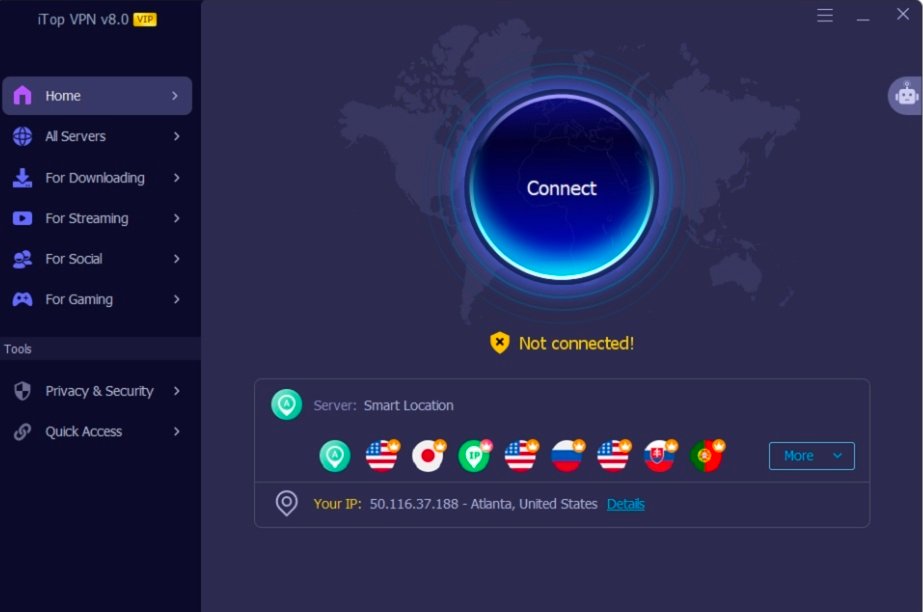
- Enable iTop VPN: Open the app and click Connect. You can choose a specific server or let Smart Location auto-select the best option.

- Configure Advanced Features: Enable Double VPN, Ads Block, or Split Tunneling depending on your specific browsing needs.

- Browse Safely: Proceed with your online activities securely, remaining cautious around unfamiliar links or downloads.
Final Thoughts
While public Wi-Fi provides undeniable convenience, it should always be used with caution. Combining safe browsing habits with comprehensive tools like iTop VPN ensures your personal data remains private and protected against online threats on any public network.